NarroHire University
Loading…
Loading…
This is the one decision that quietly shapes everything else in the builder, so give it more than a glance before you click anything.
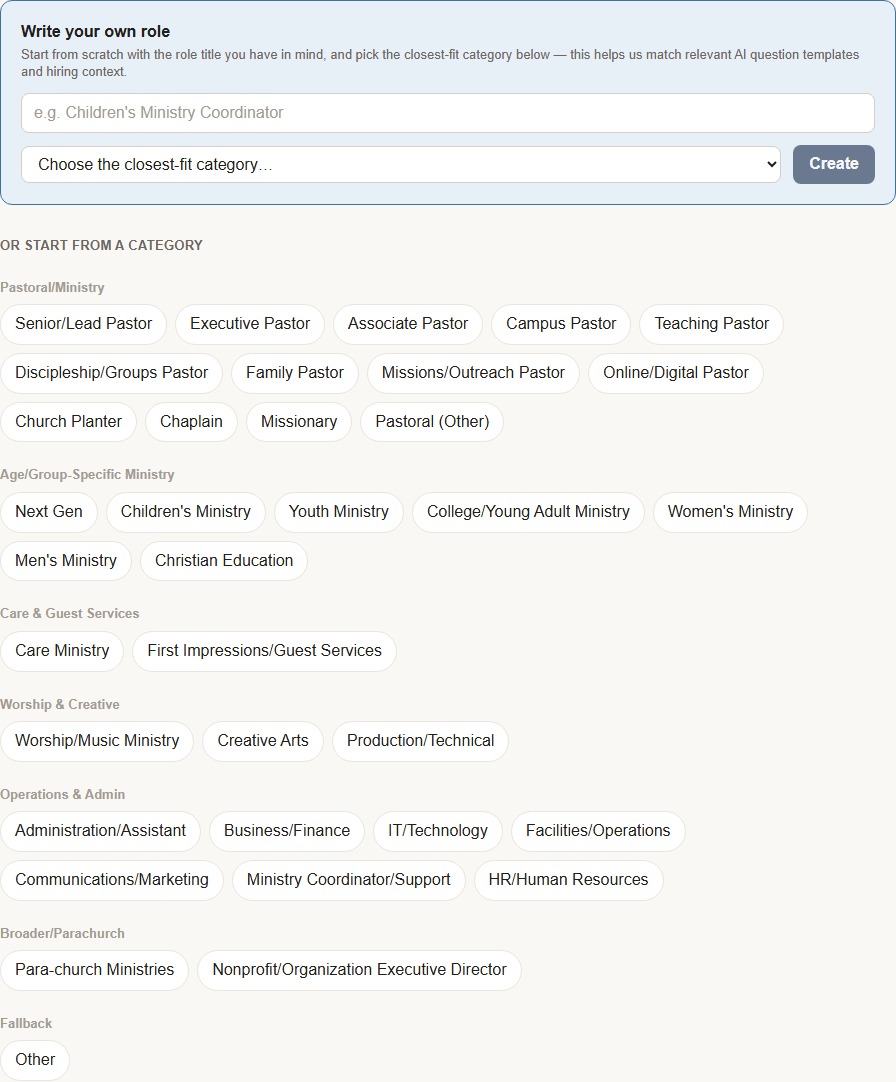
From Searches, click New Search. Real role categories sit under "OR start from a category," grouped by type: Pastoral/Ministry, Age/Group-Specific Ministry, Care & Guest Services, Worship & Creative, Operations & Admin, and a few broader groups beyond those. Click one and NarroHire creates a draft immediately, titled exactly as that category, already tagged to the role type it represents. That category tag feeds everything downstream. Process Builder's AI-written stage explanations and the written questions NarroHire suggests both draw directly on it, so getting this one click right saves you real editing later.
"Write your own role" is the other path, and it's not a way around the category system, just a different way into it. Type the actual title you want candidates to see (your church might call a role something the preset list doesn't touch), then pick the closest-fit category from the dropdown next to it. Skip that pairing and you're flying blind. NarroHire still needs a category to know what kind of role this is, even when the title itself is entirely yours.
So: pick a category outright when a preset matches well enough. Write your own when the title has to be exact, a specific ministry name, a hybrid role, whatever your church actually calls it, and anchor it to whichever category comes closest anyway.
This is usually the first real writing a candidate reads about your church, so it's worth more than a placeholder paragraph.
Job title, seniority level (Entry, Mid-Director, or Senior-Executive, which NarroHire later uses to flag role-level mismatches during candidate review), the job description itself, and an optional service video link candidates can watch before they ever apply.
You don't have to write the description alone. Generate a draft straight from your church profile, or hand NarroHire something rough and ask it to refine what's already there. Fill in your Church Profile well, and this step barely feels like work. Skip it, and you're back to staring at a blank box.
NarroHire isn't shy about one thing here: searches with a disclosed salary range pull in more qualified applicants, and it says so right on the page. Take the nudge or don't, but it's not buried fine print.
Geographic preference, optional education and experience minimums, references required (three by default, adjustable either direction), and whether U.S. work authorization is required. A personality assessment invite sits here too, and it's built to protect candidates as much as it helps you: nobody has to take it, declining costs a candidate nothing under ADA guidance, and the results are meant to inform a real conversation, not quietly disqualify someone before you've even talked. Source tracking shows you which outreach channels are actually working instead of leaving you guessing. Auto-invite to written questions moves candidates to Stage 2 automatically the moment they finish Stage 1, or turn it off and do the inviting yourself. Healthcare, retirement, and any other real benefits round out the step.
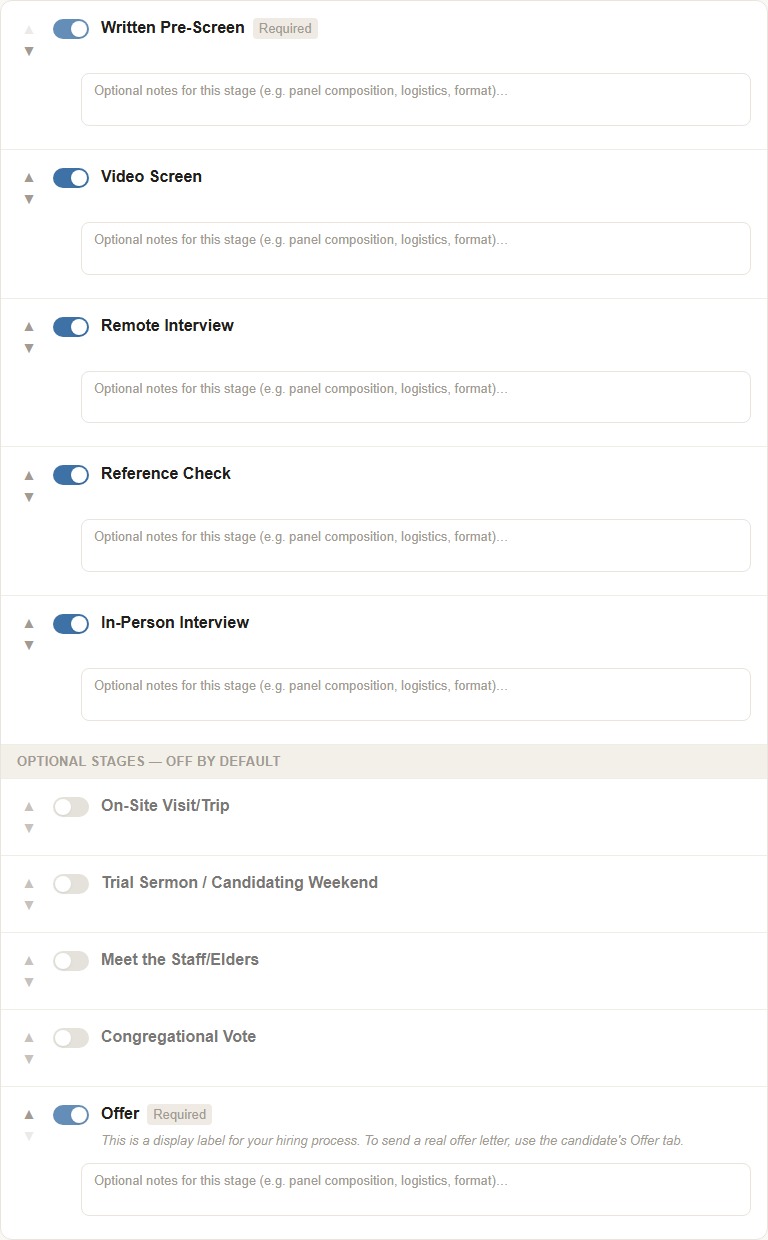
Six stages are on by default: Written Pre-Screen, Video Screen, Remote Interview, Reference Check, In-Person Interview, and Offer. Four more sit ready but off: On-Site Visit/Trip, Trial Sermon or Candidating Weekend, Meet the Staff/Elders, and Congregational Vote. Reorder any of them with the up and down arrows, or add a completely custom stage of your own, something like Handbook Review or Board Interview.
Here's the part worth pausing on: NarroHire writes a real explanation for why each stage matters, specific to the role and grounded in your actual church profile, not a canned paragraph reused across every search. In testing, a Care Ministry search at a mid-size, all-volunteer congregation got stage explanations that referenced the real attendance range and staff structure sitting in that church's own profile. That's your profile data doing real work, not decoration.
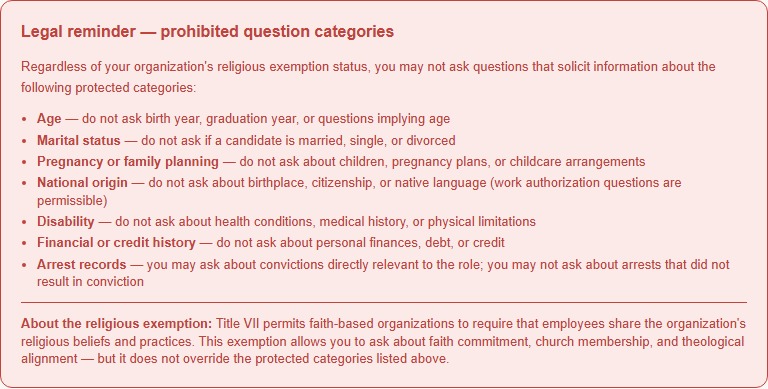
A legal reminder sits at the top of this step, and it's worth actually reading, not scrolling past. Regardless of your organization's religious exemption status, you can't ask about age, marital status, pregnancy or family planning, national origin, disability, financial or credit history, or arrest records that didn't result in conviction. Title VII's religious exemption does let faith-based organizations require shared religious beliefs and practices, so faith commitment, church membership, and theological alignment are all fair game. It just doesn't touch the protected categories above it.
AI question suggestions generate written, qualifier, and video questions based on your job description and church profile, and you review and approve each one individually. Nothing gets added to your search without your say.
Four question types, each pulling its own weight. Qualifier questions are yes/no or multiple-choice, and you can flag any answer as disqualifying so it gets surfaced for your team's review instead of buried in a pile. Written responses are typed answers, strong for theological reflections and scenario questions (candidates see an honest time estimate right on the posting, around 40 minutes for a full set, so nobody's surprised). Video screening questions ask for short recorded responses, useful for reading communication style and presence before you commit to a full interview. Reference check questions go to the people your candidate names, not the candidate themselves, and work best kept open-ended, focused on what that reference actually witnessed firsthand.
Four emails go out automatically as candidates move through your process: a video screen invitation, a written questions reminder, a reference request, and an application received confirmation. Personalize any of them now, or leave them on NarroHire's default wording and come back later, before or after your search goes live. Nobody's holding you to a decision made at 9pm during setup.
Off by default, and worth leaving that way unless you actually mean it. This is a separate ask from the video screening questions already in your process, meant for teaching samples, worship videos, or portfolio pieces specifically. Turn it on when you genuinely want that as its own requirement, not as a reflex.
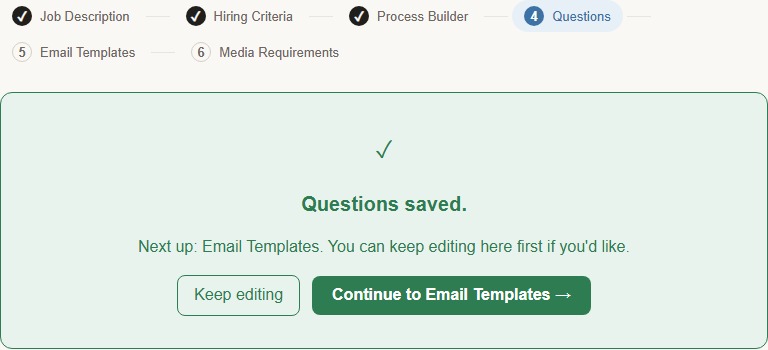
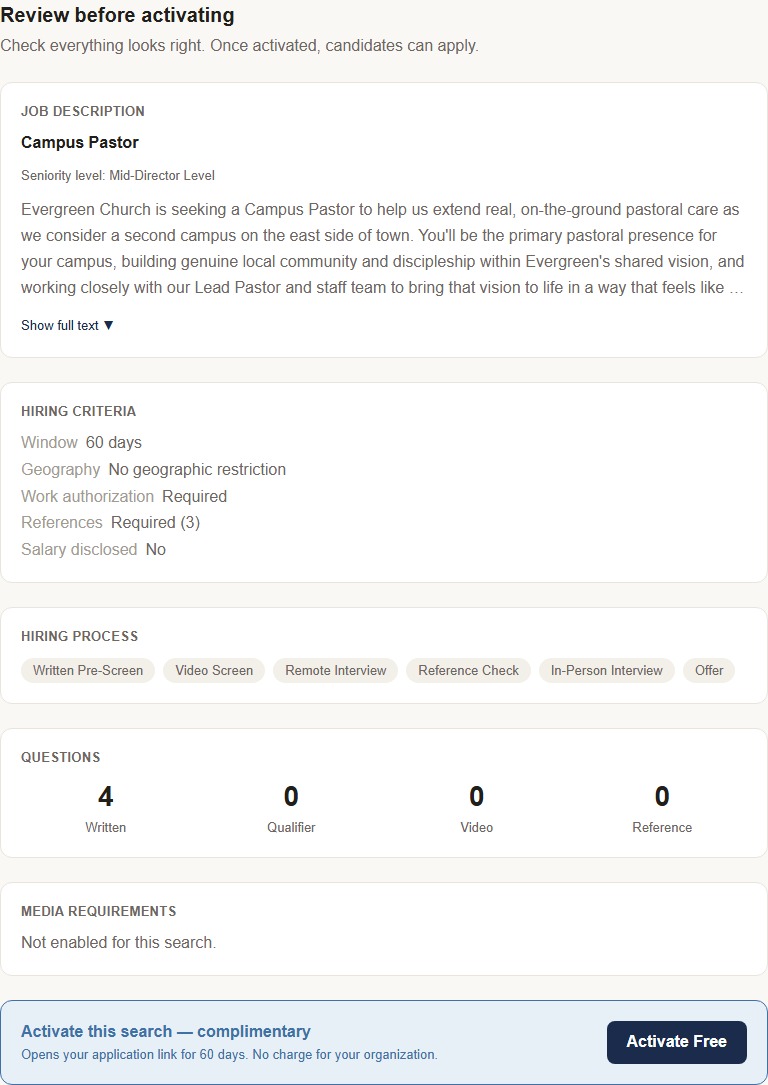
Once Questions is saved, a green panel tells you setup is complete, with a "Continue to Email Templates" button sitting right there looking like it might finish the job. It doesn't. Click it and you'll land on Email Templates, step 5, not the real activation screen. Keep moving forward through Email Templates and Media Requirements the normal way, and you'll reach the actual review page: your full job description, hiring criteria, hiring process, question counts by type, and media requirements, laid out for one real last look before anything goes live. Activation sits at the bottom of that page, not before it. Once you commit, your application link opens and candidates can start applying.